In one of the recent blogs, we discussed deploying Cisco AP as a sniffer. Do you know MacBook can act as a great sniffer. All we need to do is install the Airtool app which helps us configure the channel and channel width on which we would like to sniff using the MacBook. In the Wireshark app, configure the wireless interface to operate in Monitor mode and start capturing on it.
Step 1- Run the airtool app and choose the channel on which you want to sniff.
There are other options in Airtool like single channel or multiple channel capture wherein it will capture the traffic and you can view the capture in Wireshark after the capture is ended.
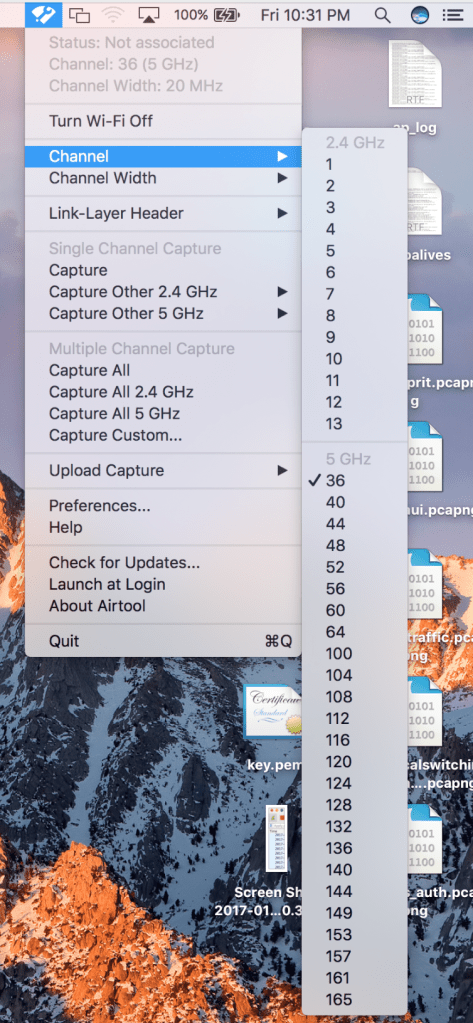
Step 2- Choose the channel width.

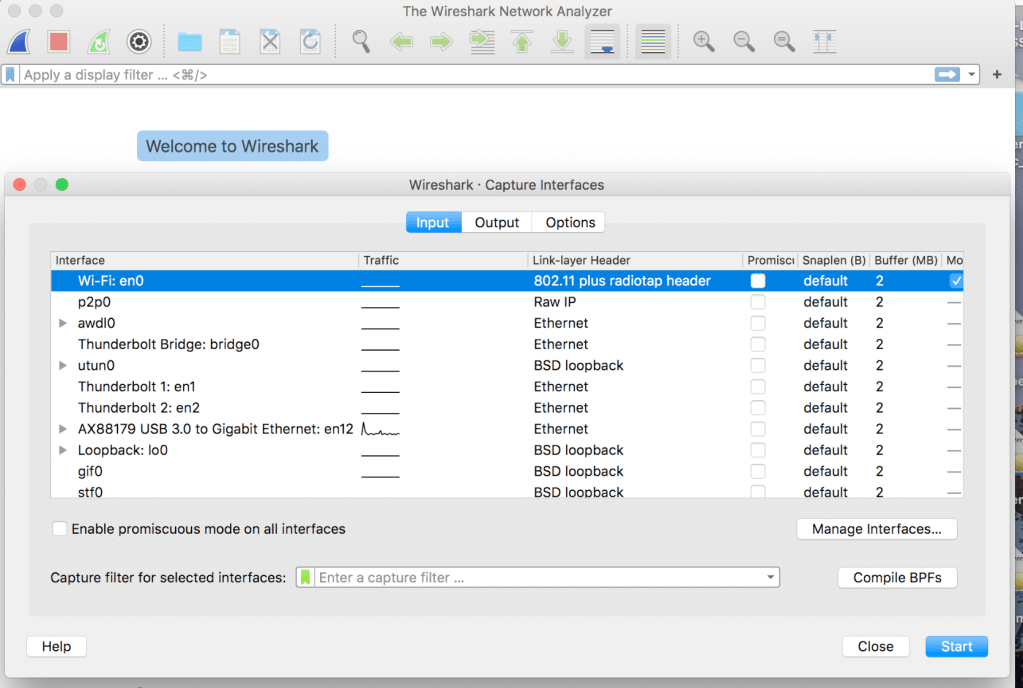
Step 3- Open the Wireshark app and open the ‘Capture interfaces’ option at the top which will show a list of network interfaces. Unselect all the remaining network interfaces and select the check box under ‘Monitor’ for the wireless network interface (right corner) and hit Start.
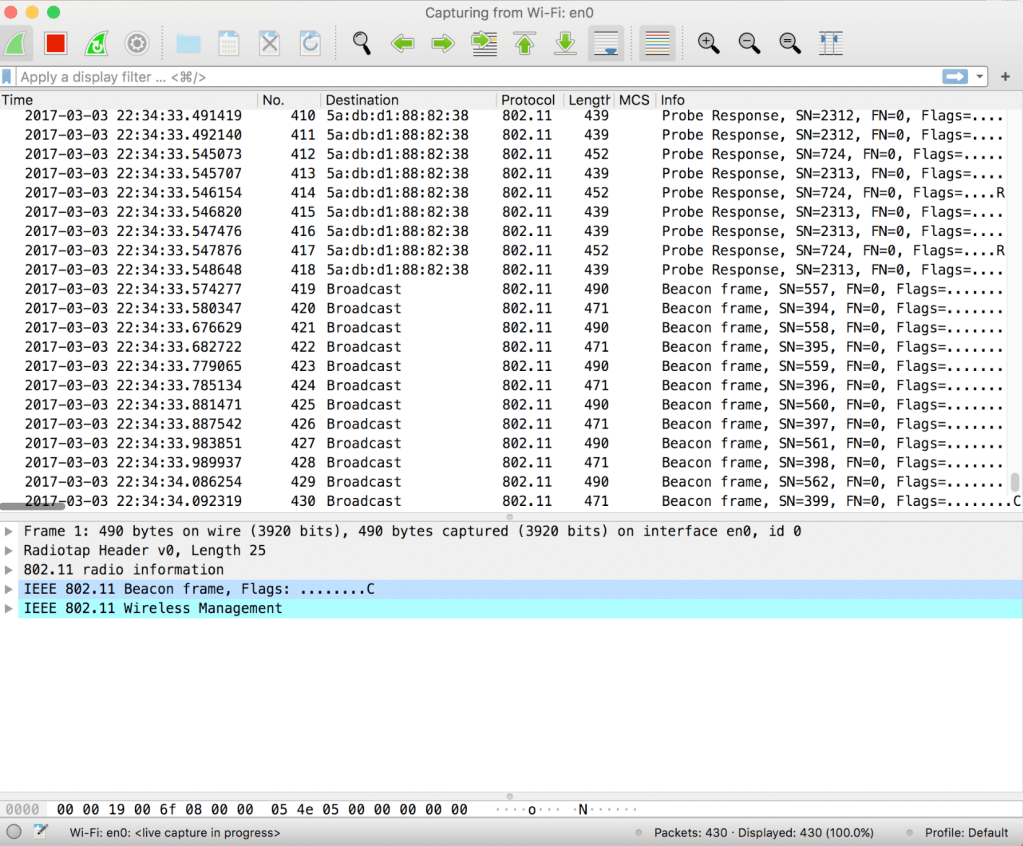
Step 4- Packets on defined channel number will start populating, we can use Wireshark filters to filter for focussed traffic to troubleshoot a specific issue.
Note: Airtool2 offers more options like sniffing on 6 GHz channels and much more.
Related Blogs-
Cisco Configuration Guides
How to use Cisco AP as a sniffer?
Wireless for Beginners
Wireless Troubleshooting
How to Troubleshoot 6 GHz 320 MHz cw client association?
Minor Outage: Wireless client cannot connect to the internet!!
Full Wi-Fi bars but my Youtube is buffering!!
 blogscisco.com