Wireless engineers have mostly leveraged their Mac PC or a linux PC to act as a wireless sniffer for troubleshooting wireless issues. The drawback with any PC as a sniffer is with every new generation of WiFi we need to upgrade the PC or atleast the wireless chip on the PC. Instead the easier workaround is to use one of the Cisco APs as the sniffer with a wired PC with Wireshark installed in it.
How to convert an AP to sniffer mode?
Cisco APs joined to 9800 WLC can be converted to sniffer mode by changing the AP mode to ‘Sniffer’ under Configuration>Access Points>Choose the AP>General> AP mode> Sniffer

How to configure Sniff channel and Sniff PC IP address?
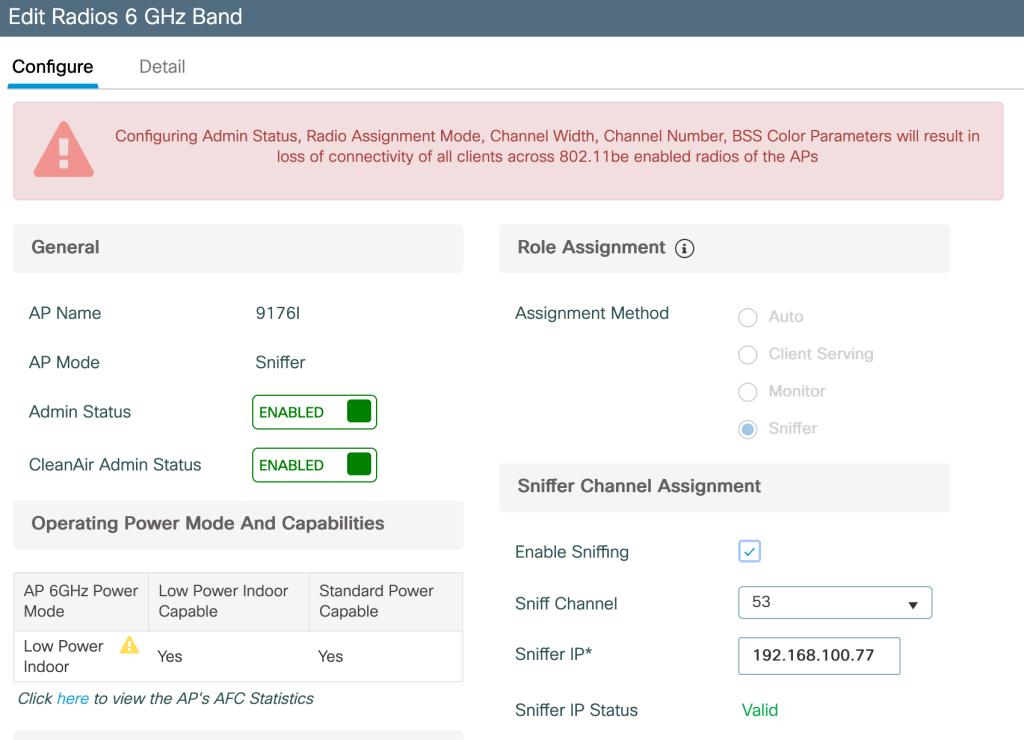
After the AP is configured as a sniffer, we need to configure the channel on which the AP is going to sniff and the IP address of the PC where we plan to view the packets in wireshark. This can be configured under Configuration>Access Points>2.4/5/6G Radios>AP Radio> Configure>Sniffer Channel Assignment> Sniff Channel and Sniffer IP (as shown below)
How to configure Wireshark to sniff packets?
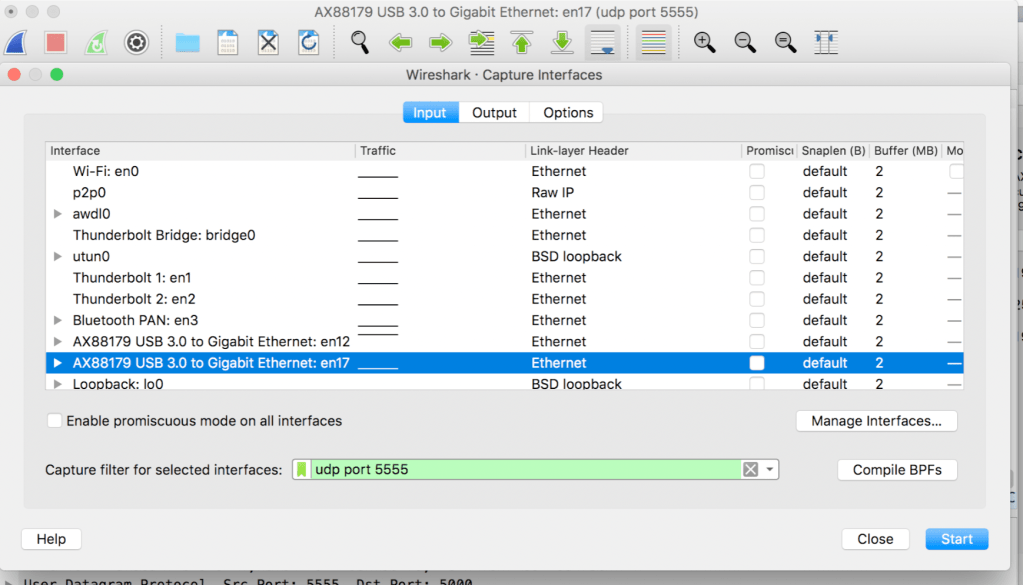
Configuring the wireshark to capture packets on udp port 5555- Capture option>Choose the wired interface (interface defined under sniff IP above)>start
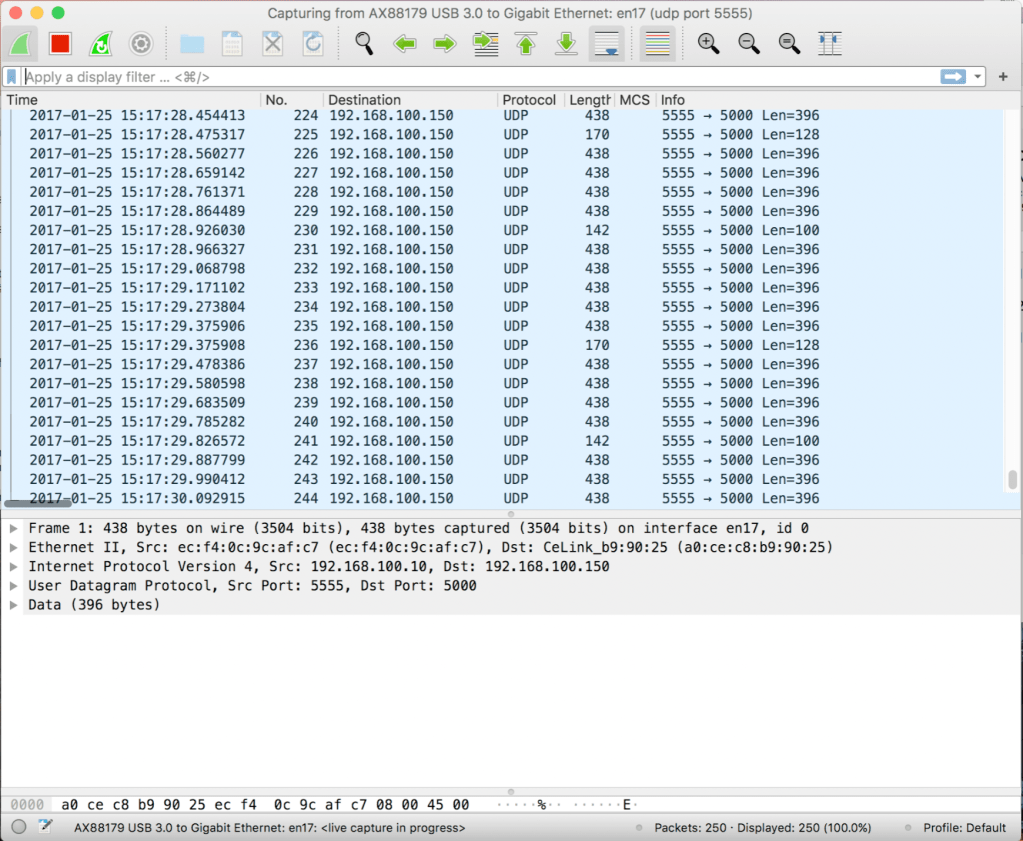
Initially we will observe the packets recieved from the AP to this interface on PC on udp port 5555 as follows-
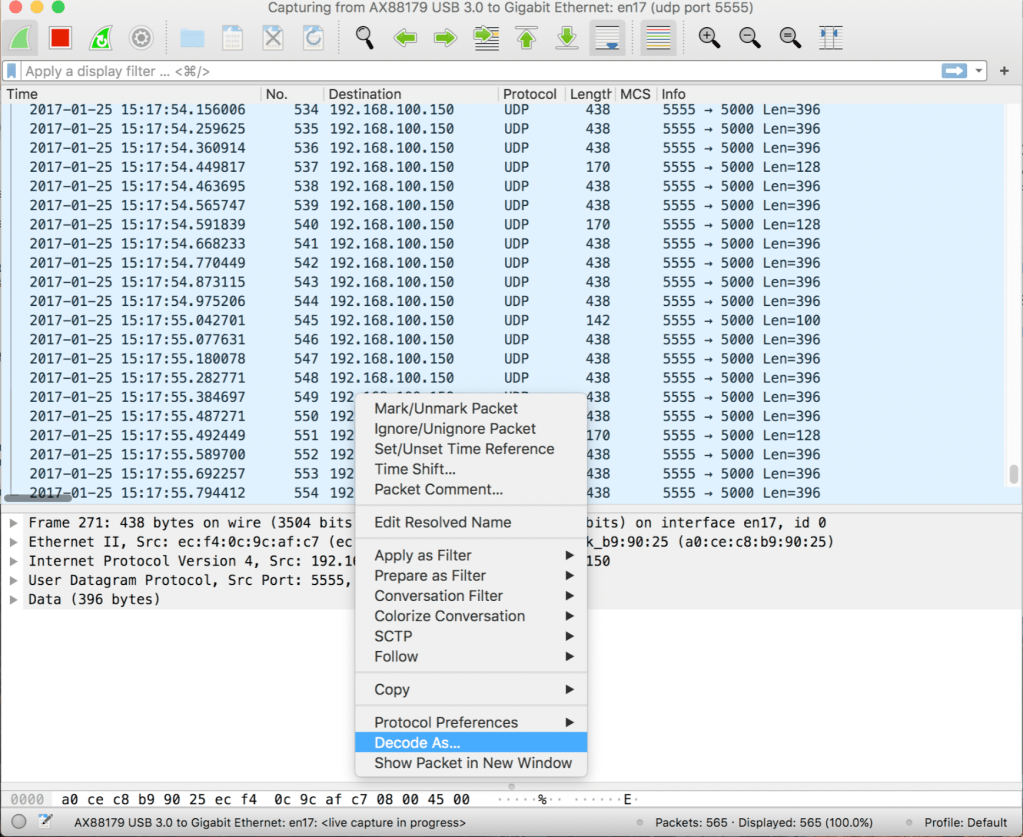
How to decode the UDP packets?
Select a packet>Decode as>change the current mode to ‘PEEKREMOTE’ as seen below

We will see the wireless packets we were not able to view earlier

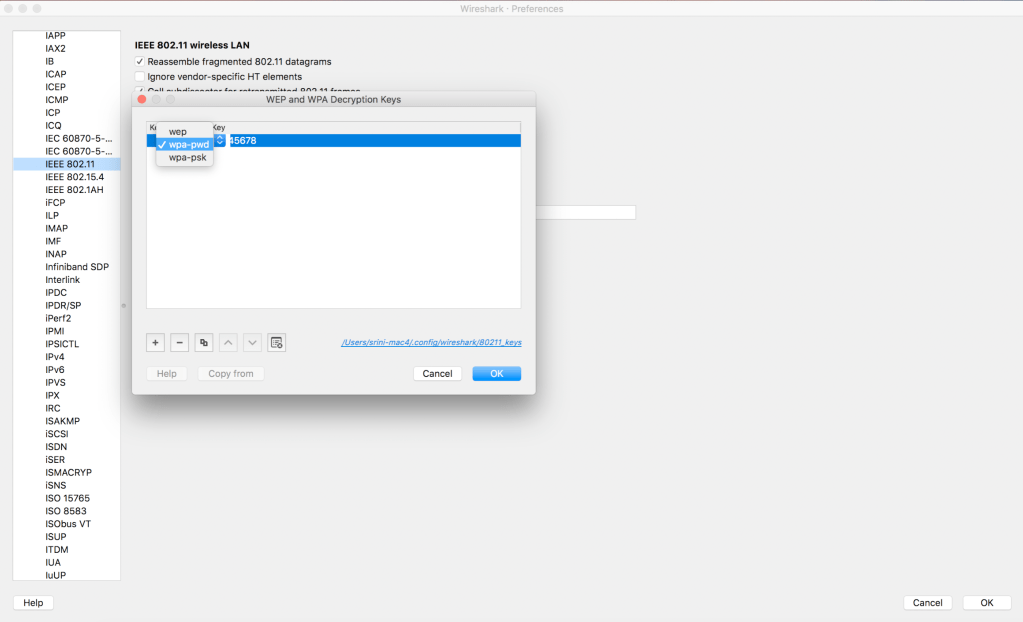
Additionally, we can decrypt wep/wpa-pwd/wpa-psk traffic under Preferences>Protocol>IEEE 802.11>wpa-psk><Password> as shown below
Related Blogs
Cisco Configuration Guides
How to associate my Wi-Fi 7 client on 6 GHz with 320 MHz cw?
Configuring 802.1x authentication for Enterprise Wireless
How to configure Cisco AP in Flexconnect mode?
How to configure Cisco AP in Local mode?
Comprehensive Reads
Quick Reads
Central Switching vs Local Switching
Wireless Troubleshooting
 blogscisco.com